
Verify License With Keygen.sh
Network Connectivity and License Server Access
The machine running the WMS SDK must have an active internet connection to periodically verify the license status. You can verify whether the current network environment can reach the licensing servers by sending a GET request to the Keygen ping endpoint, which should return an HTTP 200 status code.
Invoke-WebRequest -Uri "https://api.keygen.sh/v1/ping" -Method GETconst fetch = require("node-fetch")
const response = await fetch("https://api.keygen.sh/v1/ping", { method: "GET" })import requests
res = requests.get("https://api.keygen.sh/v1/ping")import SwiftyJSON
import Alamofire
Alamofire.request("https://api.keygen.sh/v1/ping", method: .get)using RestSharp;
var client = new RestClient("https://api.keygen.sh");
var request = new RestRequest("/v1/ping", Method.GET);
var response = client.Execute(request);import com.mashape.unirest.http.exceptions.*
import com.mashape.unirest.http.*
val res = Unirest.get("https://api.keygen.sh/v1/ping")import com.mashape.unirest.http.exceptions.*;
import com.mashape.unirest.http.*;
HttpResponse<JsonNode> res = Unirest.get("https://api.keygen.sh/v1/ping");#include <iostream>
#include <string>
#include <cpprest/http_client.h>
#include <cpprest/filestream.h>
using namespace std;
using namespace web;
using namespace web::http;
using namespace web::http::client;
using namespace utility;
http_client client("https://api.keygen.sh");
http_request req;
req.set_request_uri("/v1/ping");
req.set_method(methods::GET);
client.request(req).wait();You should be able to see the following reply:
Security Warning: Script Execution Risk
Invoke-WebRequest parses the content of the web page. Script code in the web page might be run when the page is
parsed.
      RECOMMENDED ACTION:
      Use the -UseBasicParsing switch to avoid script code execution.

      Do you want to continue?

[Y] Yes  [A] Yes to All  [N] No  [L] No to All  [S] Suspend  [?] Help (default is "N"): Y


StatusCode        : 200
StatusDescription : OK
Content           :
RawContent        : HTTP/1.1 200 OK
                    Content-Security-Policy: default-src 'none'; report-uri /-/csp-reports; report-to csp-reports;
                    Keygen-Account:
                    Keygen-Bearer:
                    Keygen-Edition: EE
                    Keygen-Environment:
                    Keygen-Lic...
Forms             : {}
Headers           : {[Content-Security-Policy, default-src 'none'; report-uri /-/csp-reports; report-to csp-reports;],
                    [Keygen-Account, ], [Keygen-Bearer, ], [Keygen-Edition, EE]...}
Images            : {}
InputFields       : {}
Links             : {}
ParsedHtml        : mshtml.HTMLDocumentClass
RawContentLength  : 1
If you are unable to reach the licensing servers, first verify general internet connectivity to another domain to rule out a broader network issue.
PowerShell Test
You can test connectivity with the following PowerShell command:
Test-NetConnection api.keygen.sh

ComputerName           : api.keygen.sh
RemoteAddress          : 3.33.148.61
InterfaceAlias         : Wi-Fi
SourceAddress          : 192.168.0.48
PingSucceeded          : True
PingReplyDetails (RTT) : 22 ms

Test-NetConnection api.keygen.sh -port 443

ComputerName     : api.keygen.sh
RemoteAddress    : 3.33.148.61
RemotePort       : 443
InterfaceAlias   : Wi-Fi
SourceAddress    : 192.168.0.48
TcpTestSucceeded : True

Test-NetConnection api.keygen.sh -port 80

ComputerName     : api.keygen.sh
RemoteAddress    : 13.248.241.119
RemotePort       : 80
InterfaceAlias   : Wi-Fi
SourceAddress    : 192.168.0.48
TcpTestSucceeded : True
A successful result confirms DNS resolution and network reachability.
Browser Test
Open a web browser and navigate to https://api.keygen.sh/v1/ping. If the page loads, basic HTTPS access is working.
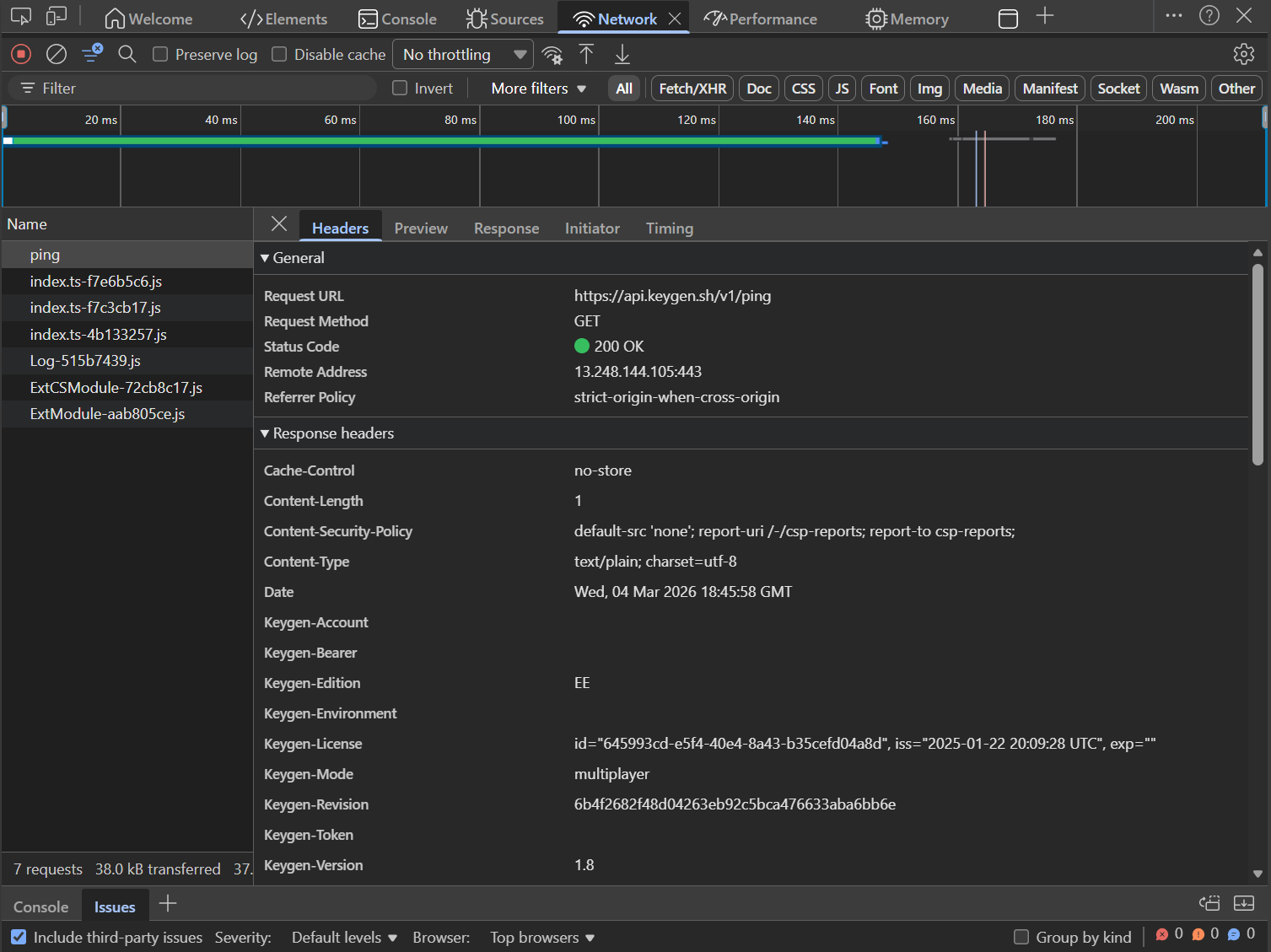
Keygen.sh response with Status Code 200.
Firewall, DNS And Network Requirements
- Ensure your IT team whitelists the domain
api.keygen.sh(andkeygen.sh) in the system firewall. - Allow outbound traffic on ports
80and443. - Do not whitelist IP addresses—the license server uses dynamic IPs, which cannot be relied upon.
- If connectivity fails, try switching to a different DNS provider, as some DNS providers may block or filter requests.
System And Environment Checks
- Update the operating system to the latest version, as an outdated certificate chain can cause TLS handshake failures.
- Perform all connectivity tests on a local machine, not inside a VM or restricted environment.
- If licensing works locally but fails in a VM, the issue is likely caused by VM-specific restrictions (firewall, proxy, antivirus, or corporate network policies).
- This is considered an IT infrastructure issue and should be investigated by your IT team.
- Using the license temporarily on a local machine for testing is supported; it can later be deactivated and reused in a VM or on another system.
WMIC Additional Notes
During license validation, an issue may occur related to the use of WMIC to retrieve the system Hardware ID. This can appear as an “Unable to reach Keygen” or similar license validation error.
WMIC has been deprecated and removed starting with Windows 11 and later versions of Windows 10 (21H1/21H2 and newer). On these systems, wmic.exe is no longer included in the System32 directory by default.
If you encounter a WMIC-related error, try manually enabling or installing WMIC on the affected machine and then retry the license registration.
For more detailed connectivity information, refer to the official keygen.sh online documentation.
Updated 2 months ago