
Technical Interface
A client connecting to this server on the specified port will receive a continuous stream reflecting the AutoStore log.
The data stream consists of readable characters, so a standard Telnet client can be used to view it.
Each event (segment) consists of:
- A tag that identifies the event.
- Optional parameters, separated by commas.
- A newline
CRLFthat terminates the segment.
Listening With Code
using System;
using System.IO;
using System.Net.Sockets;

// We will store the LP data here
string data = "";
// The LP ip port
int ipPort = 44001;
// The installation location of LP
string ipAddress = "127.0.0.1";

TcpClient client = new TcpClient(ipAddress, ipPort);
StreamReader sr = new StreamReader(client.GetStream());

do
{
    // Read line from LP
    data = sr.ReadLine();
    // Dump the line of data
    Console.WriteLine(data);
}
while (data != null);
// No more data from socket, closing.
client.Close();
import socket
# We will store the LP data here
data = ""
# The LP IP port
ip_port = 44001
# The installation location of LP
ip_address = "127.0.0.1"
client = socket.socket(socket.AF_INET, socket.SOCK_STREAM)
client.connect((ip_address, ip_port))
sr = client.makefile('r')
while True:
# Read line from LP
data = sr.readline()
# Dump the line of data
print(data)
if not data:
# No more data from socket, closing.
break
# Close the socket
client.close()const net = require('net');
// We will store the LP data here
let data = "";
// The LP IP port
const ip_port = 44001;
// The installation location of LP
const ip_address = "127.0.0.1";
const client = new net.Socket();
client.connect(ip_port, ip_address, () => {
console.log(`Connected to ${ip_address}:${ip_port}`);
});
client.on('data', (chunk) => {
// Read line from LP
data = chunk.toString();
// Dump the line of data
console.log(data);
if (!data) {
// No more data from socket, closing
client.destroy();
}
});
client.on('close', () => {
// Close the socket
console.log('Connection closed');
});Listening With Telnet
Prerequisites
Install Telnet client in an elevated PowerShell session with the command:
Enable-WindowsOptionalFeature -Online -FeatureName "TelnetClient"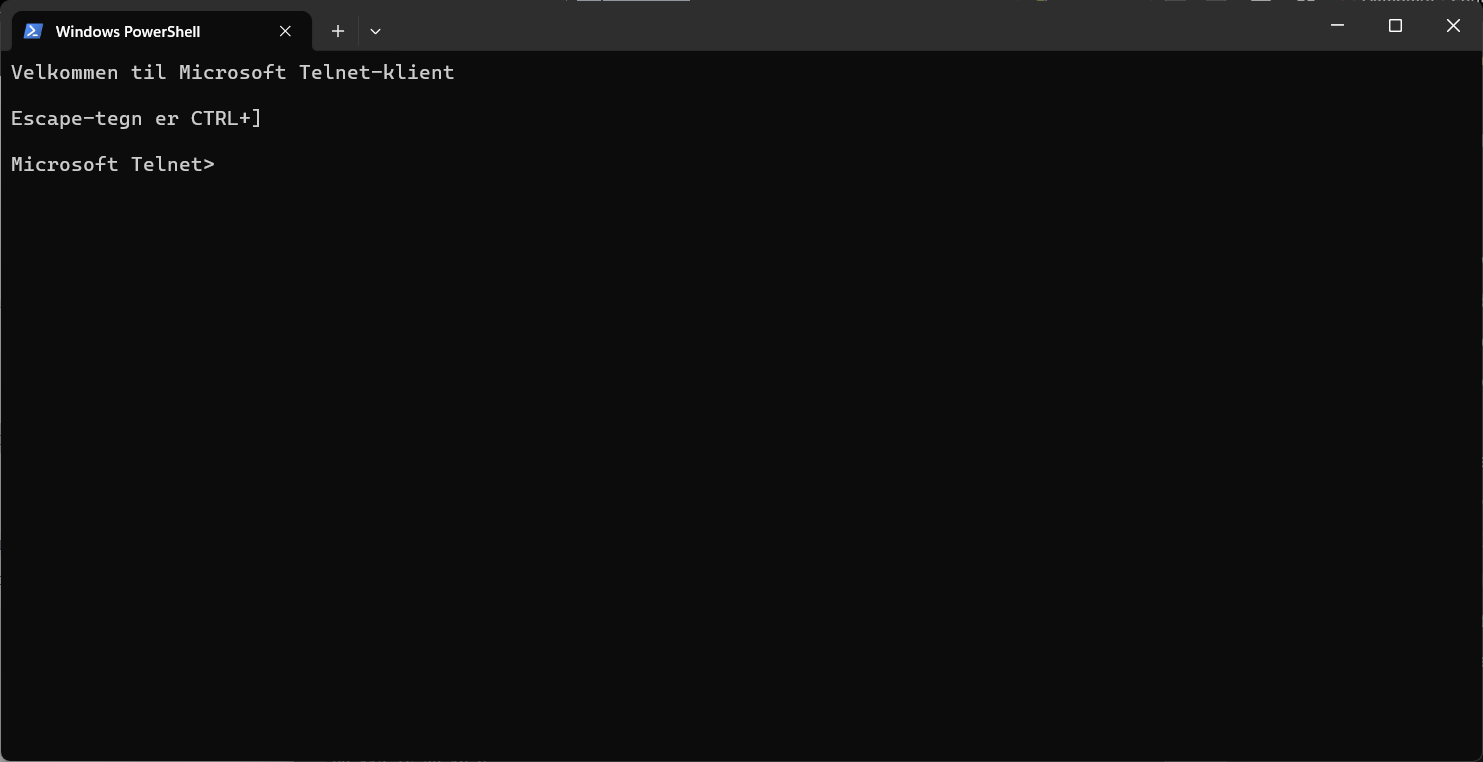
Telnet installed.
Launch Telnet
Launch the Telnet client in a terminal window with the command:
telnetSetup Logs
Optionally, set a log file (this is useful on busy grids) with the command:
set logfile logpublisher.log
If you miss an event, open the log file in a text editor and search for the event. Make sure to delete the log file before starting a new test.
Connect To Host
In Telnet client, connect to Log Publisher with the command:
o 127.0.0.1 44001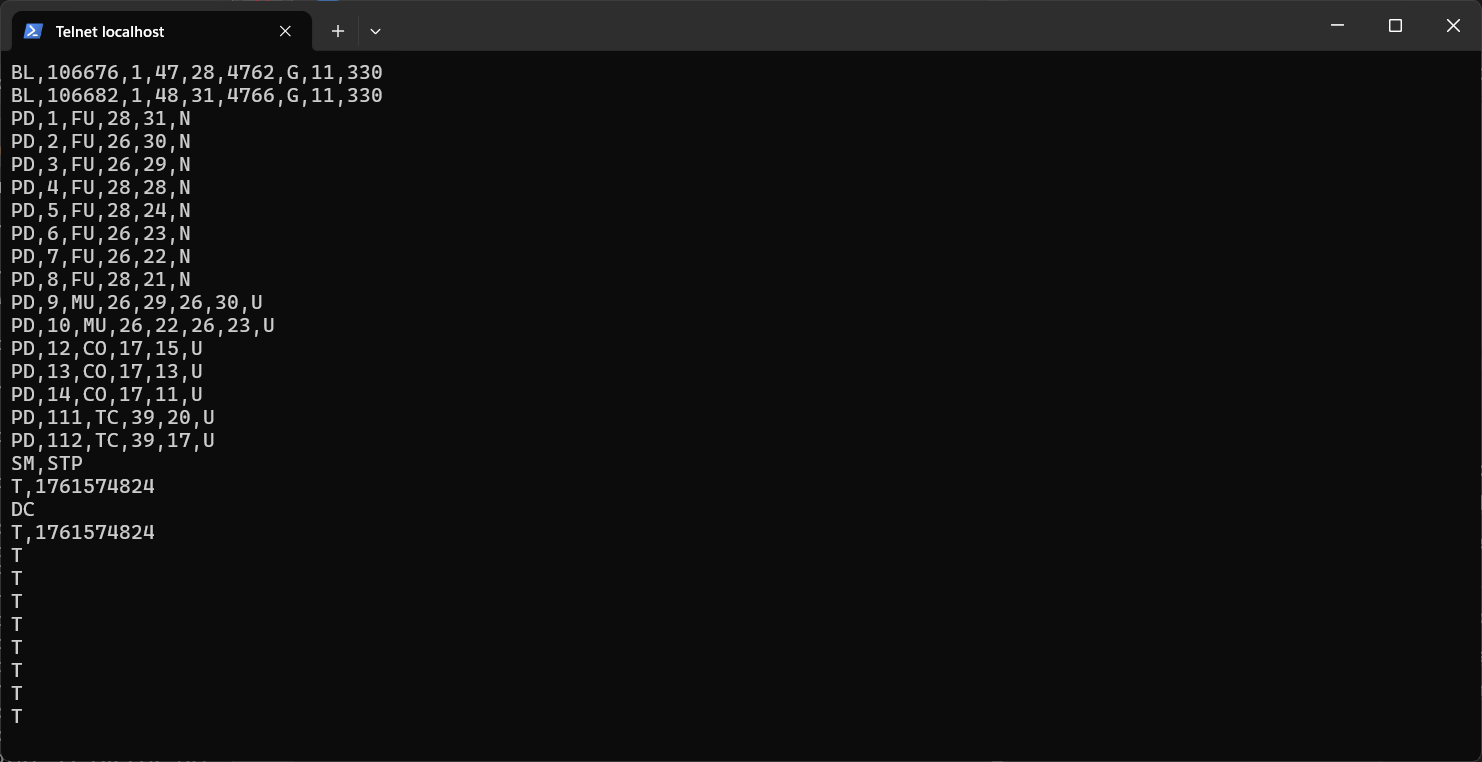
Telnet connects to Log Publisher and receives the initial state.
Updated 2 months ago