
Postman Collection Guide
Overview
As a means to test communication with AutoStore Interface V2, AutoStore provides a Postman environment and request collection. Postman is an API platform for building and using APIs, and the Postman API client (also known as the Postman App) allows you to easily organize and test requests against a target API—in this case, AutoStore Interface V2.
The Postman API client can be downloaded here. Alternatively, you can use Postman via their website; in either case, the steps in this guide remain the same.
The Postman request collection, named AutoStore API.postman_collection.json, contains sample requests for the various methods provided by both the AutoStore Interface and the AutoStore Simulation Interface. The requests are organized into two groups: one for the Standard AutoStore Interface and one for the Simulation Interface.
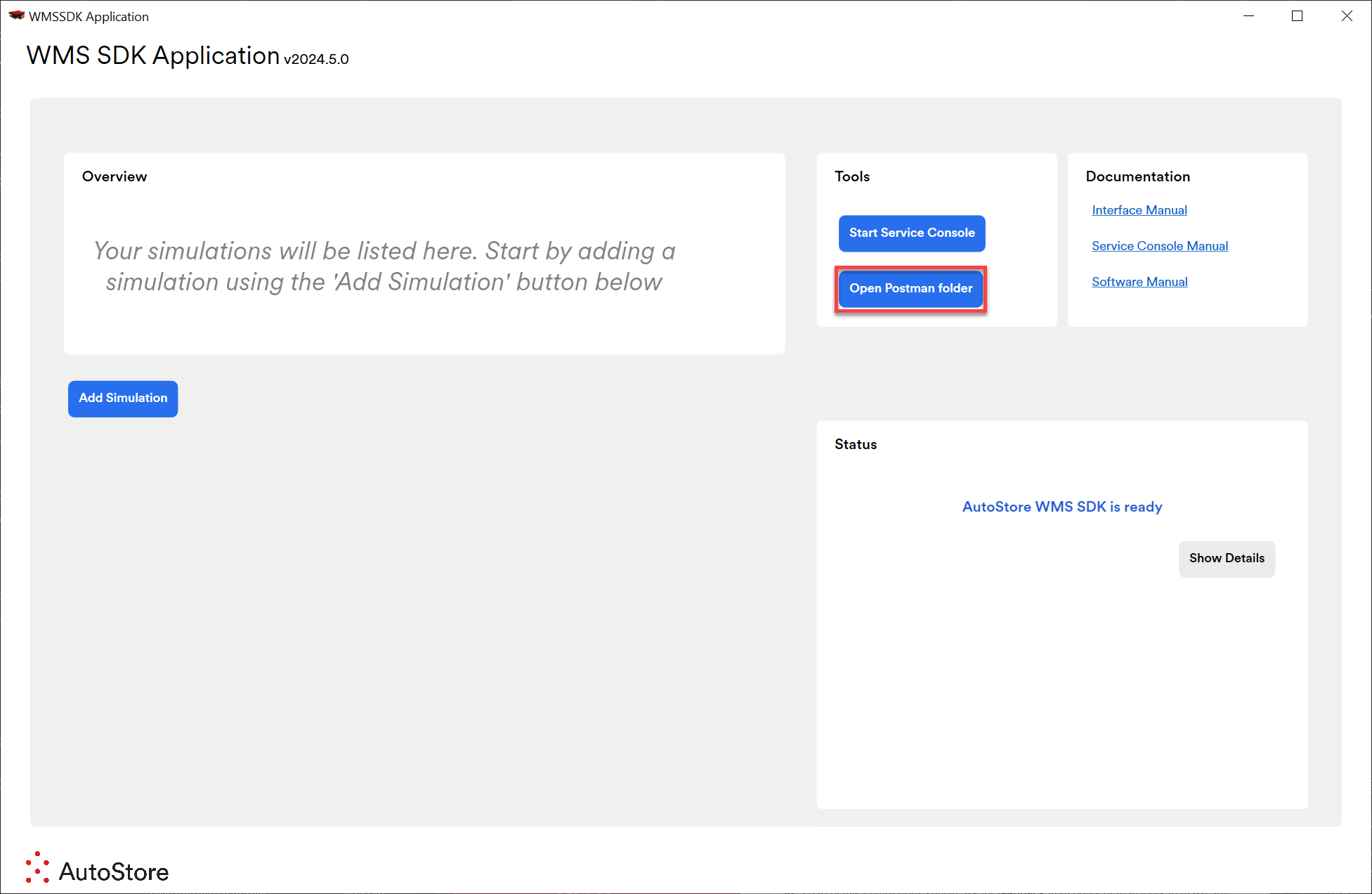
This Postman collection has been created to replace the Interface HTTP Test Client. Starting with v2024.5.0 of the WMS SDK Application, a button is available to open the Postman collection directly, replacing the old Test Client, as shown below:
Using Postman Collection
Clicking the Open Postman folder button will open the Postman collection included with your WMS SDK installation on your local machine.
The collection includes two files: a Postman environment file and a Postman request collection file. Both files can be imported into the Postman API client for use.
The Postman environment file (named AutoStore Environment.postman_environment.json) defines the environment for the API, including the server address and endpoints for the Task Interface, Bin Interface, and Simulation Interface.

Now, navigate to the Postman website in your browser: https://www.postman.com/. Create an account and then create a new workspace (or alternatively, use the downloaded Postman app).
Import Postman Collection
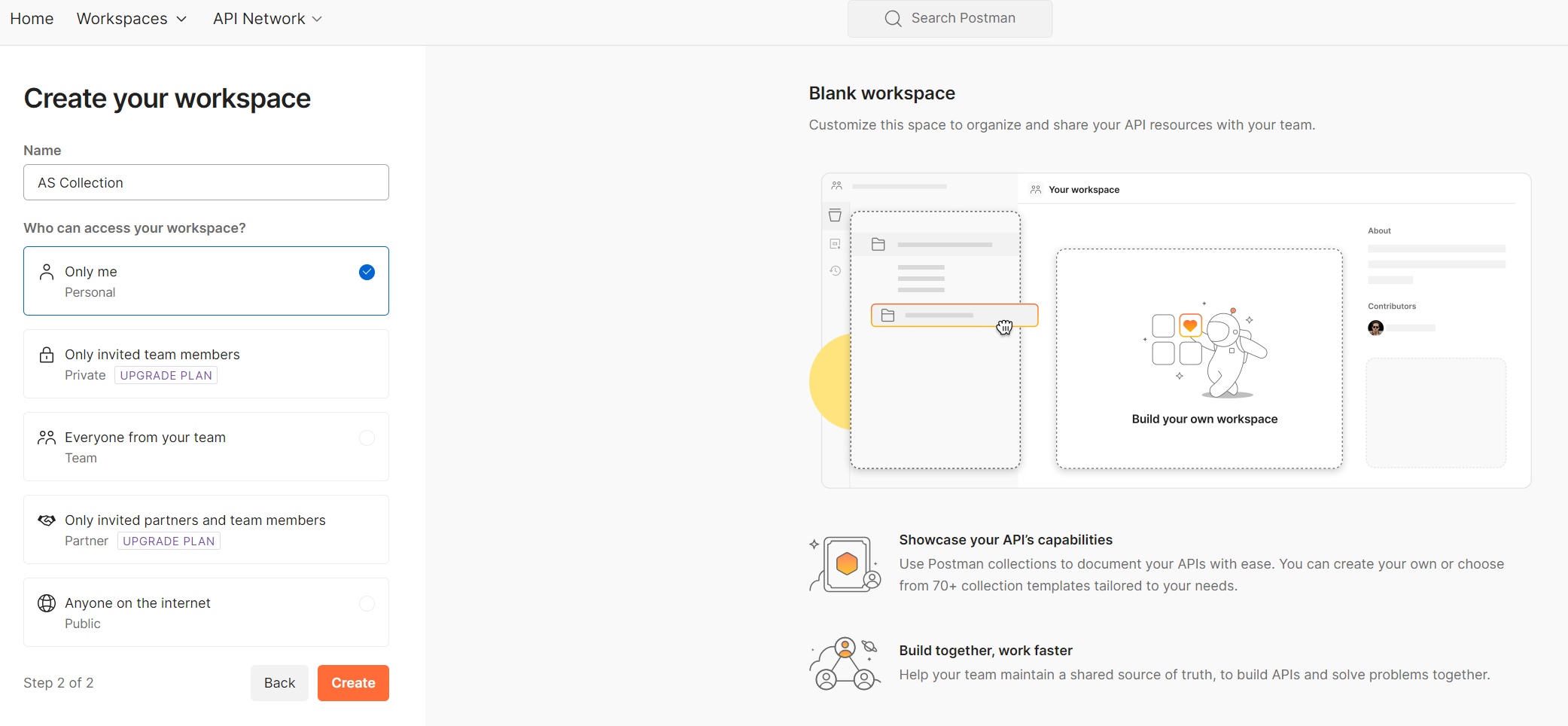
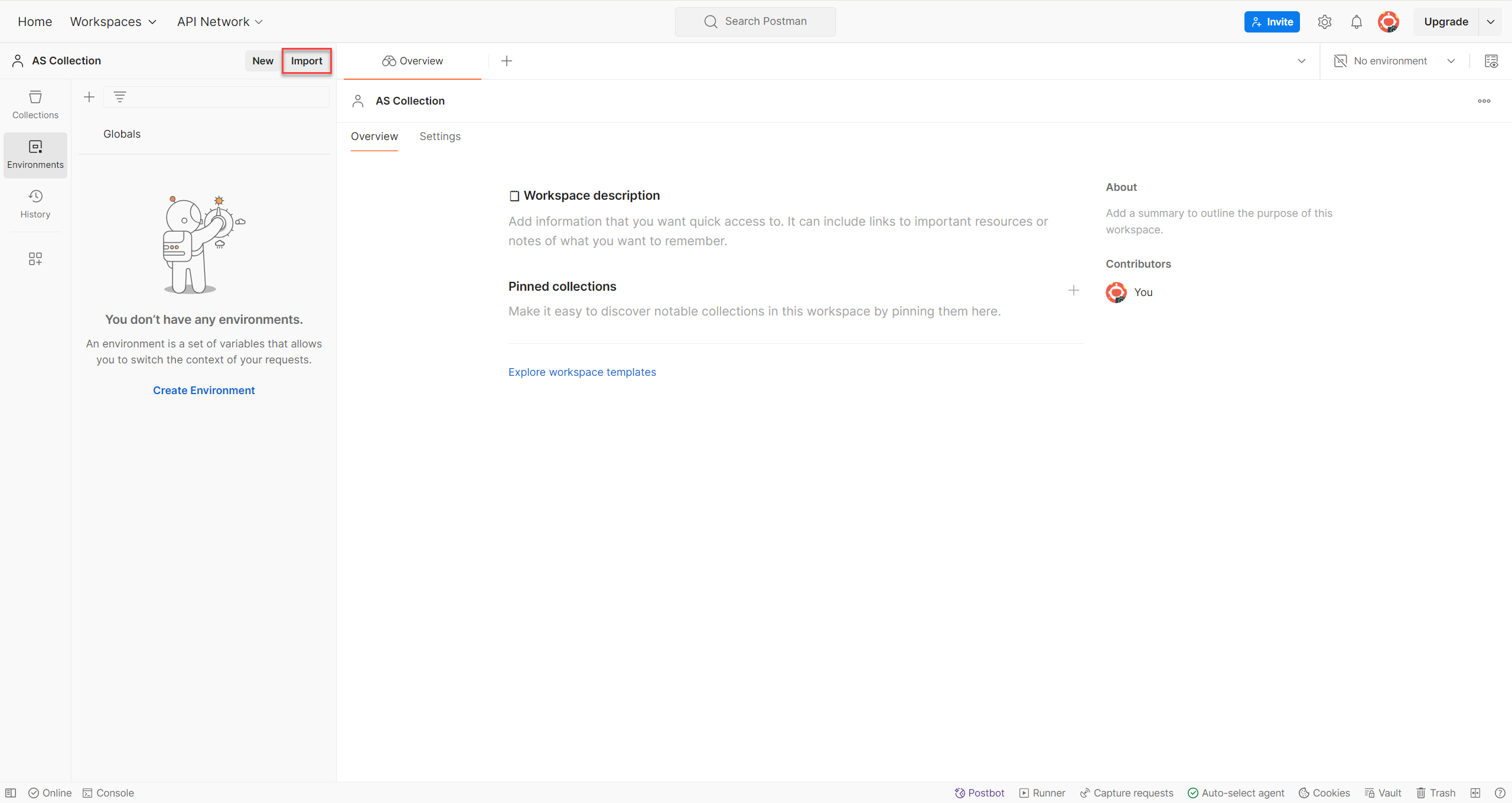
After creating a new workspace, click the Import button to import the two Postman files from your local machine.
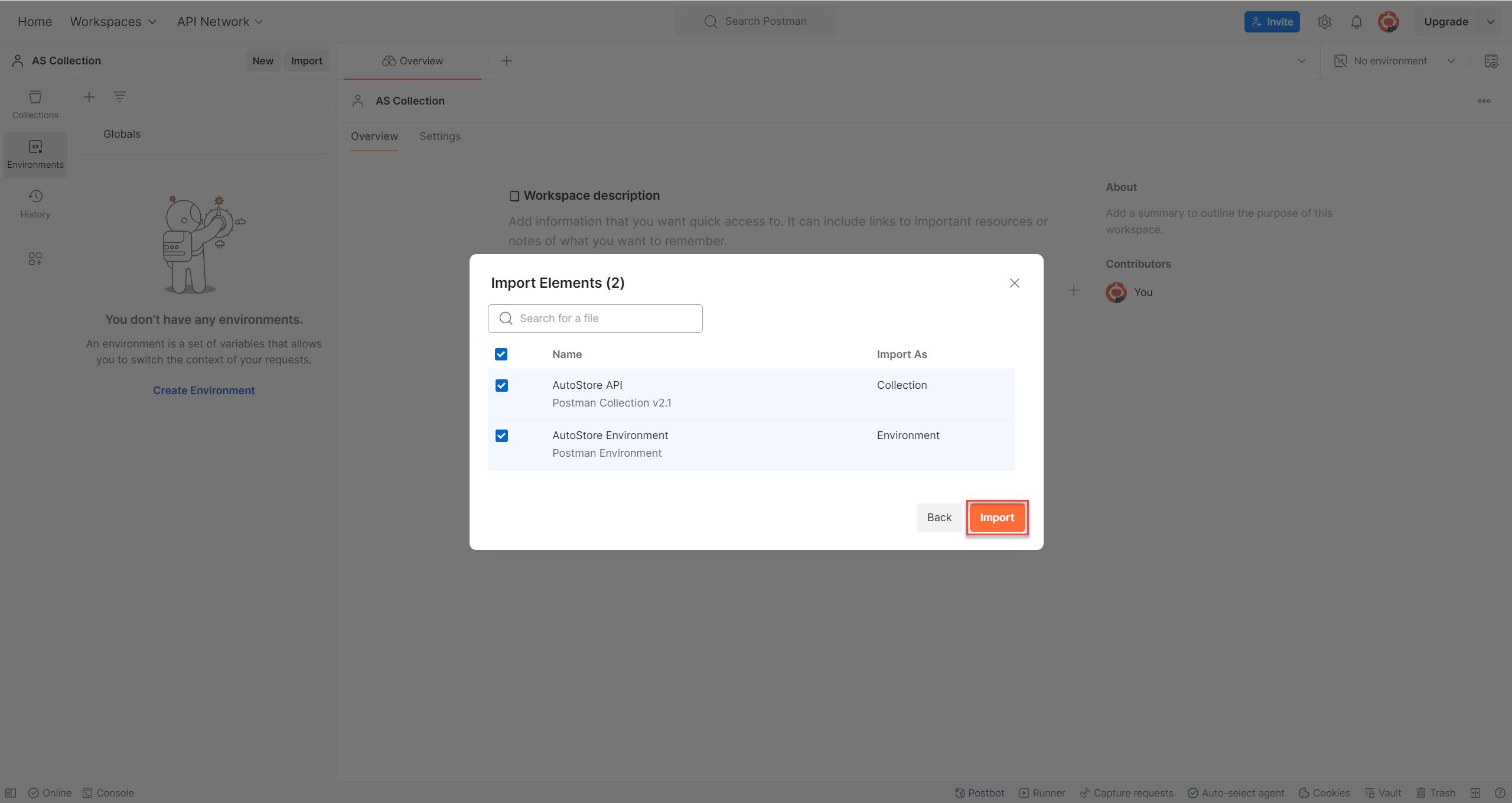
Click Import to confirm the import of the Postman collection and environment, as shown below:
Specify Environment For API Testing
In the top-right corner of the Postman application, there is a dropdown menu. By default, it may be set to No Environment. Click the dropdown and select AutoStore Environment to use the server and endpoint addresses defined in the AutoStore Environment collection, as shown below:
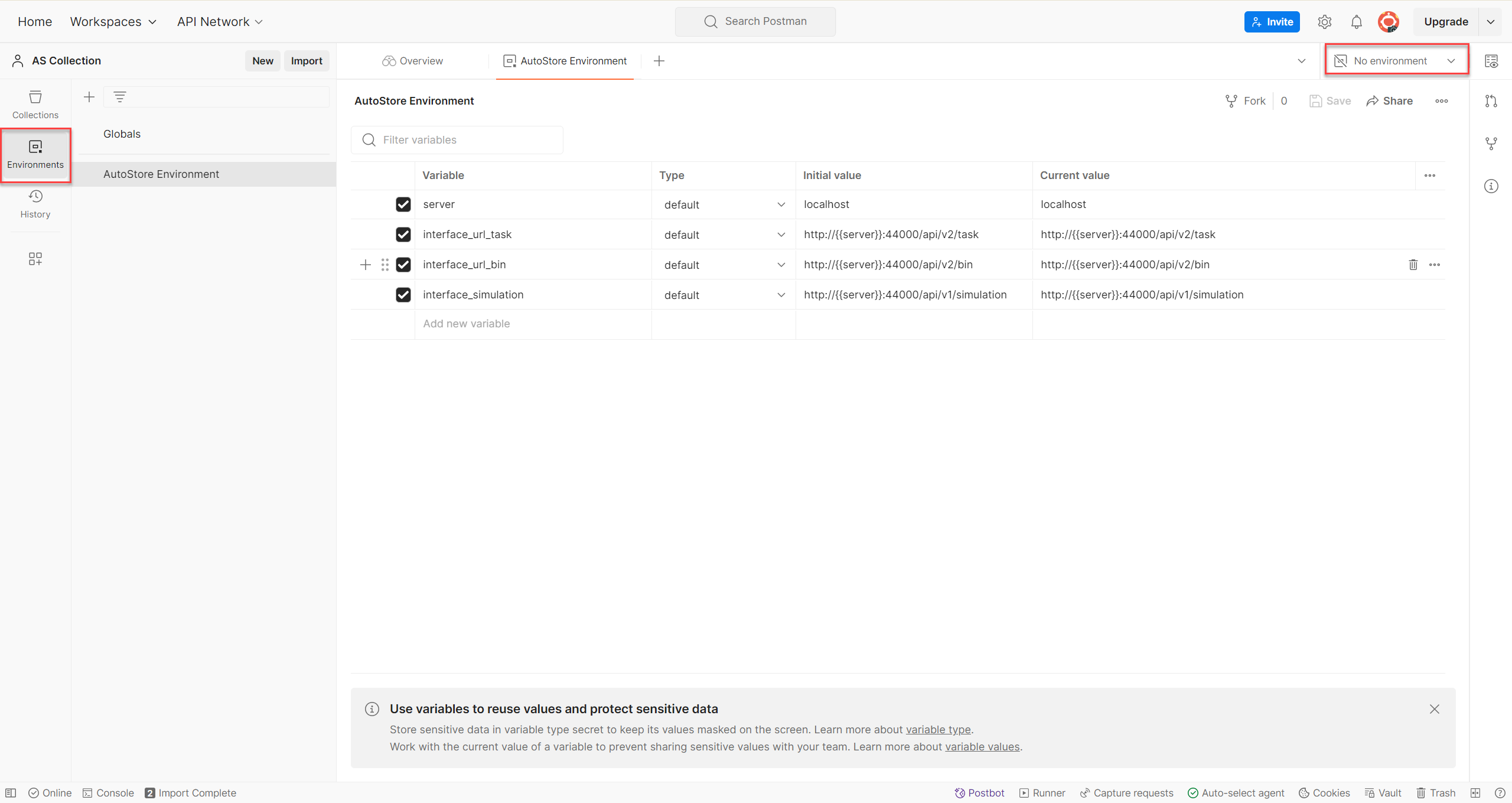
By default, the AutoStore environment uses your localhost (127.0.0.1) to send API calls. Make sure the WMS SDK Simulation/Interface is running, or the host will not be reachable.
Sending Requests To The AS Interface
- Navigate to the method: To send a request to the AutoStore Interface, first locate the specific method.
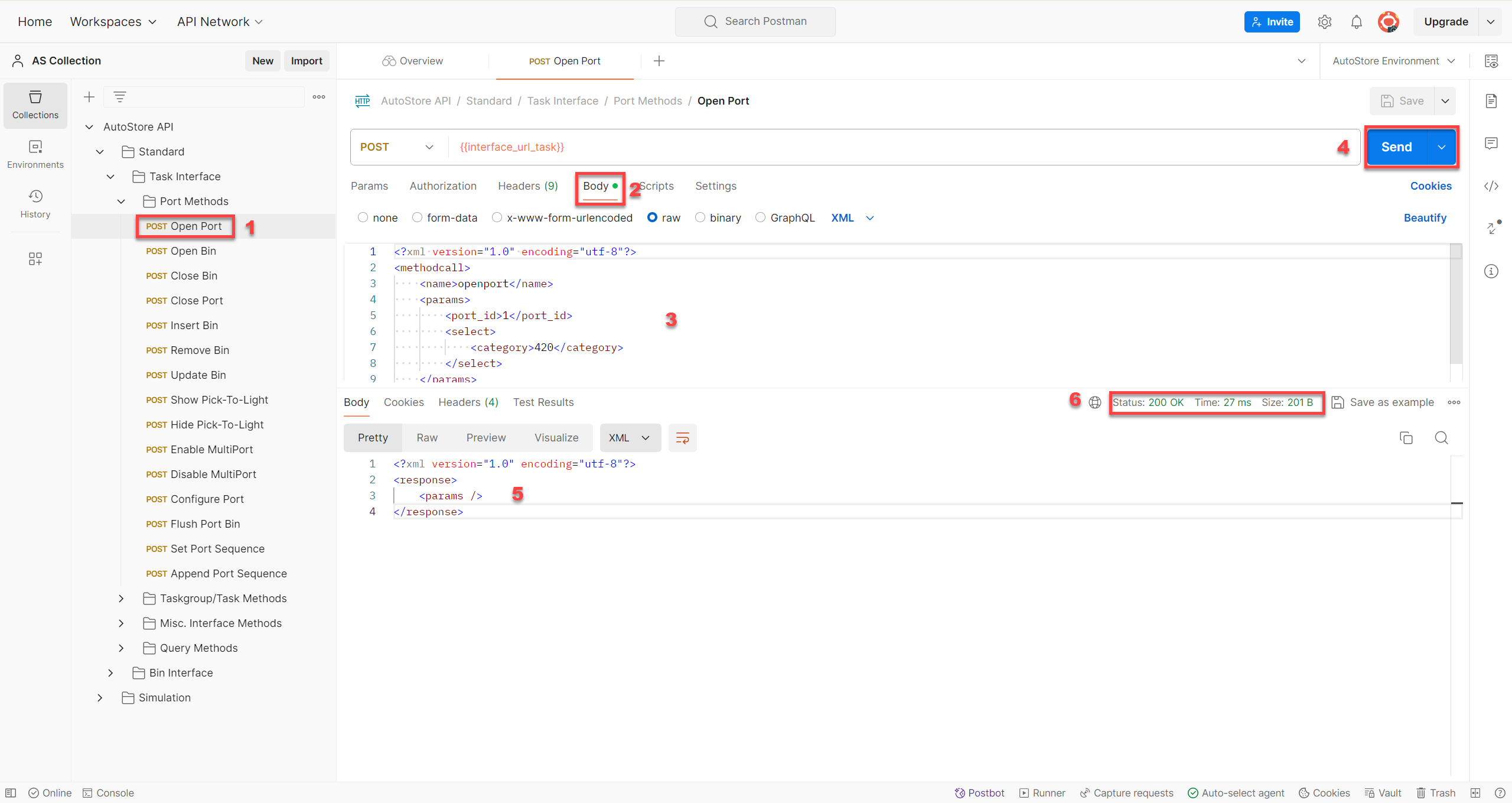
- For example, we will use the Open Port method from the Task Interface. Go to:
AutoStore API → Standard → Task Interface → Port Methodsand select the request named “Open Port”.
- For example, we will use the Open Port method from the Task Interface. Go to:
- Click Body: Switch to the Body tab to view the request details.
- Edit the XML parameters: The XML shown in the Body view represents exactly what will be sent to the AutoStore Interface. Before sending the request, edit the parameters for the specific method as needed by modifying the
<params>section in the top half of the view. - Send the request: Click the Send button.
- View the response: The response XML from the AutoStore Interface will appear in the bottom half of the view.
- Check the response code: A successful request will return a
200response code.
Updated 2 months ago