
How To Use/Features Overview
WMS SDK How To Use / Features Overview
# 1) Adding a grid/simulation/aslog file.
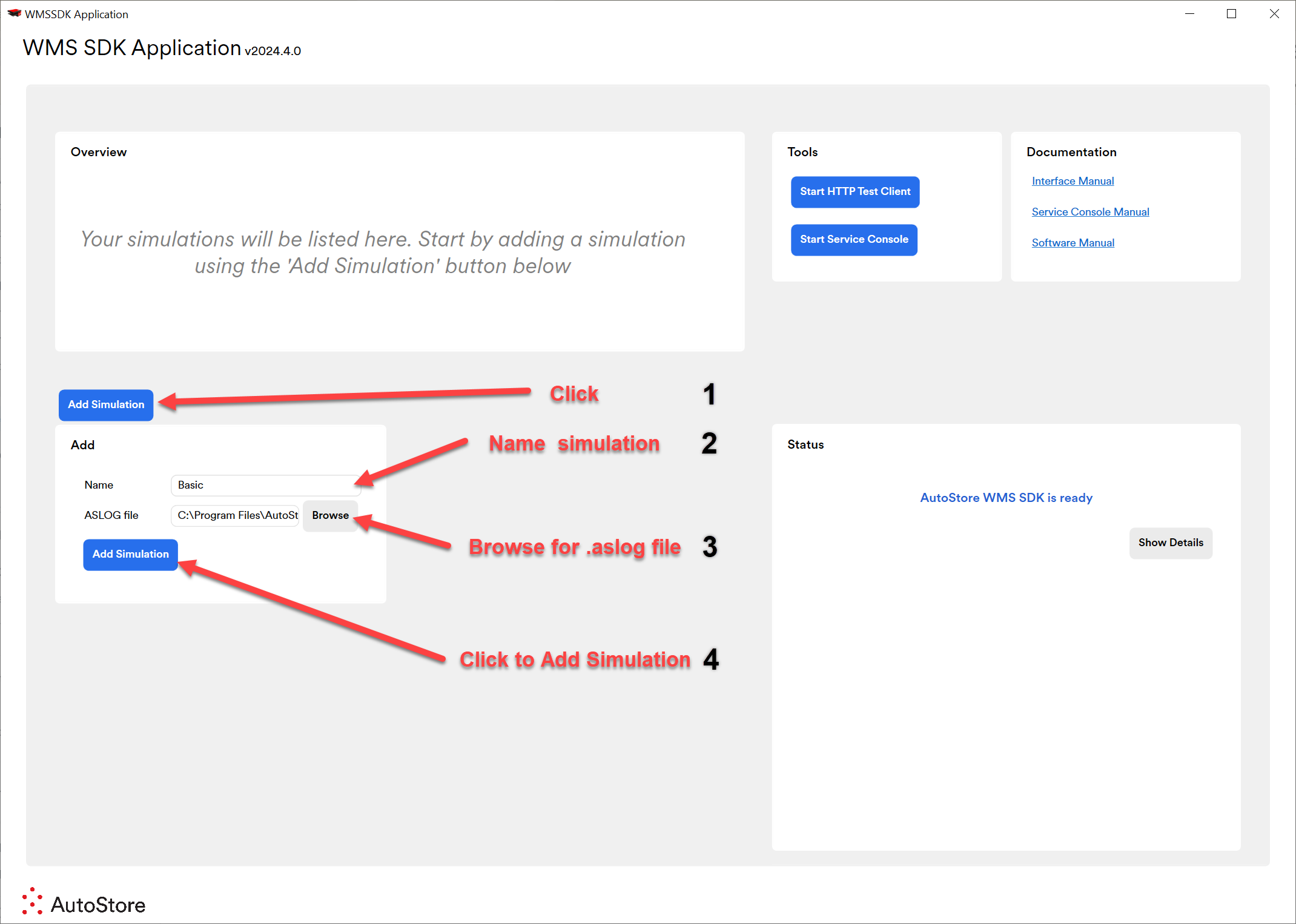
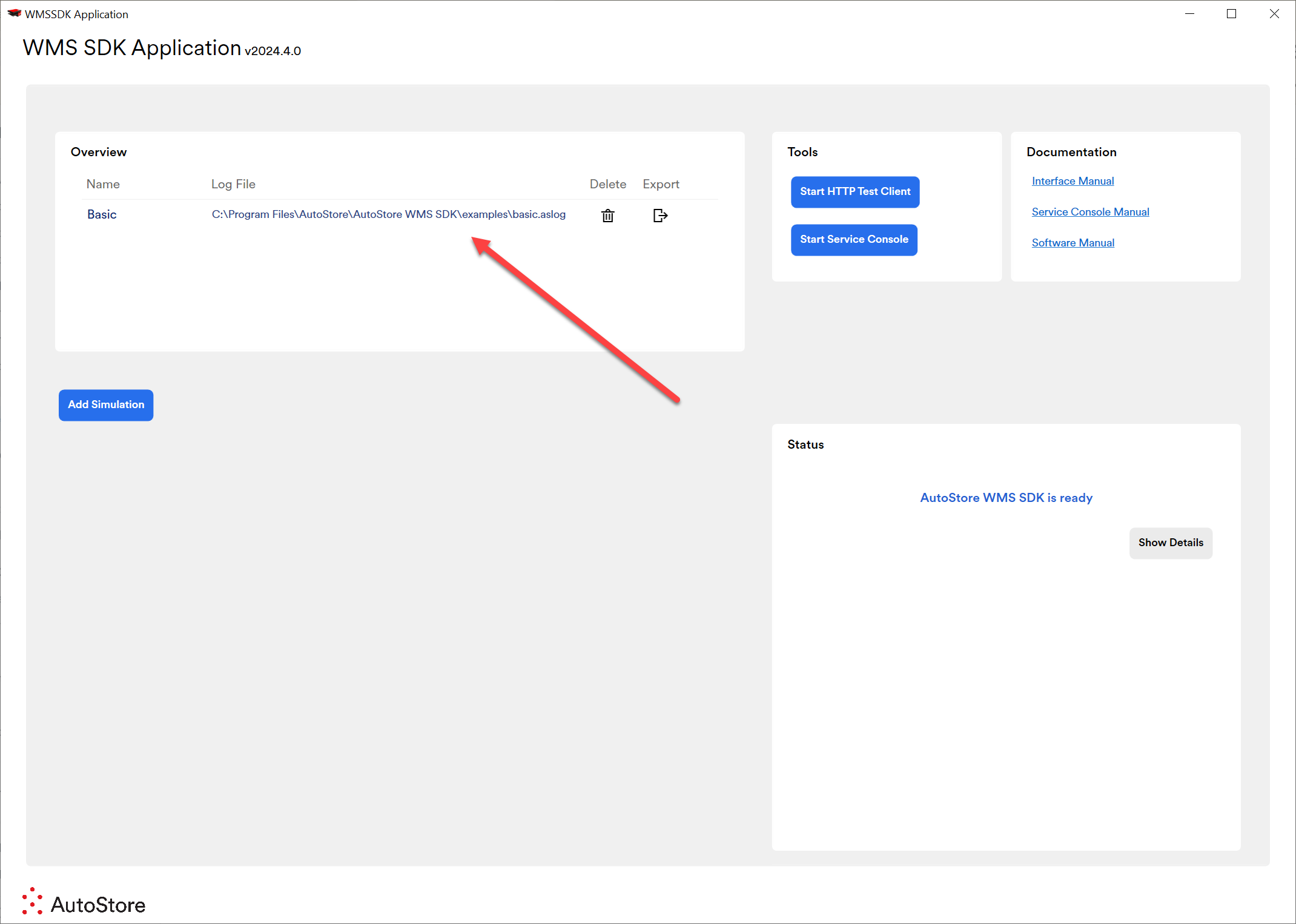
Grid will now be added to simulations list
# 2) Running your simulation
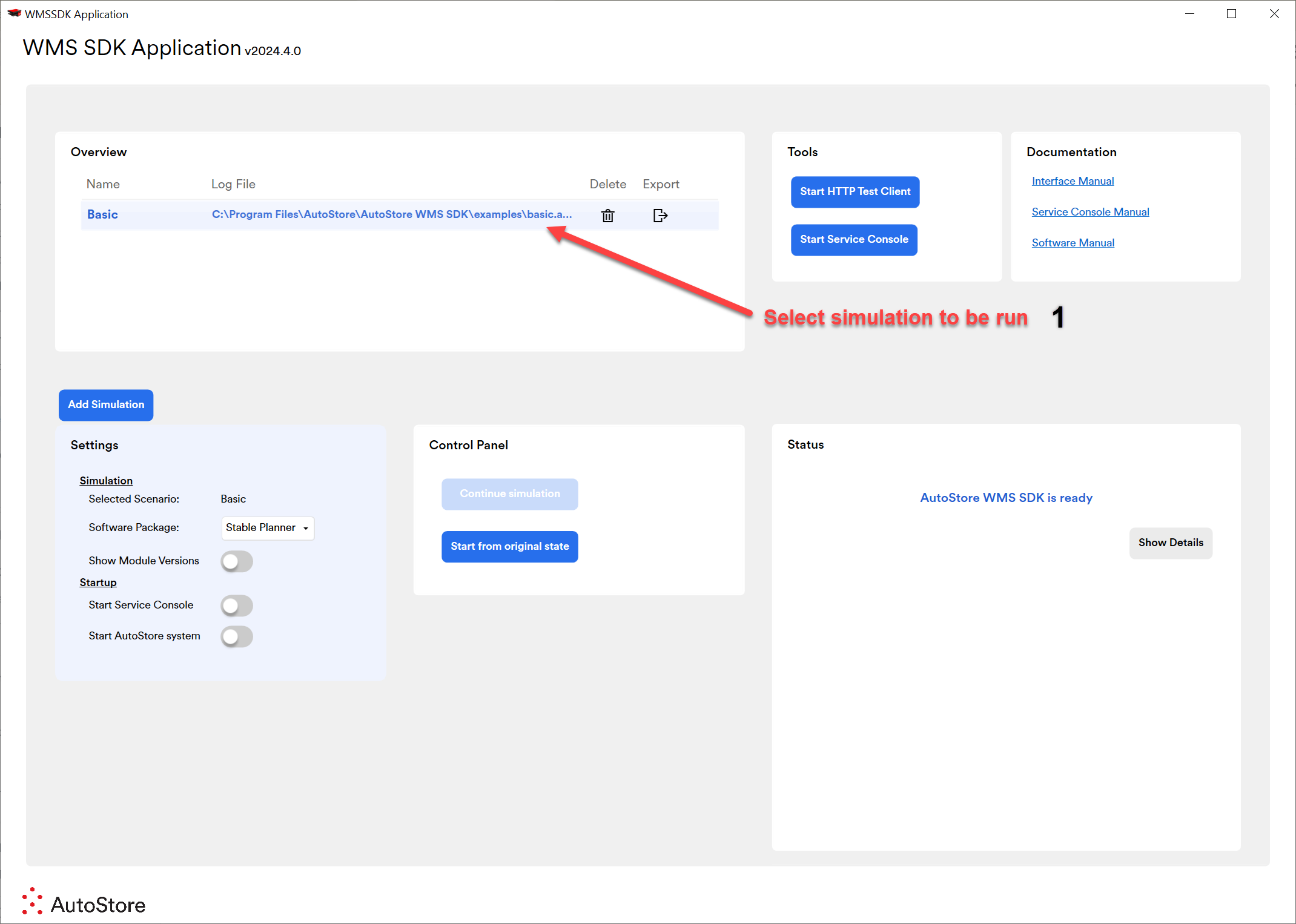
This list will show all of your simulations you have added.
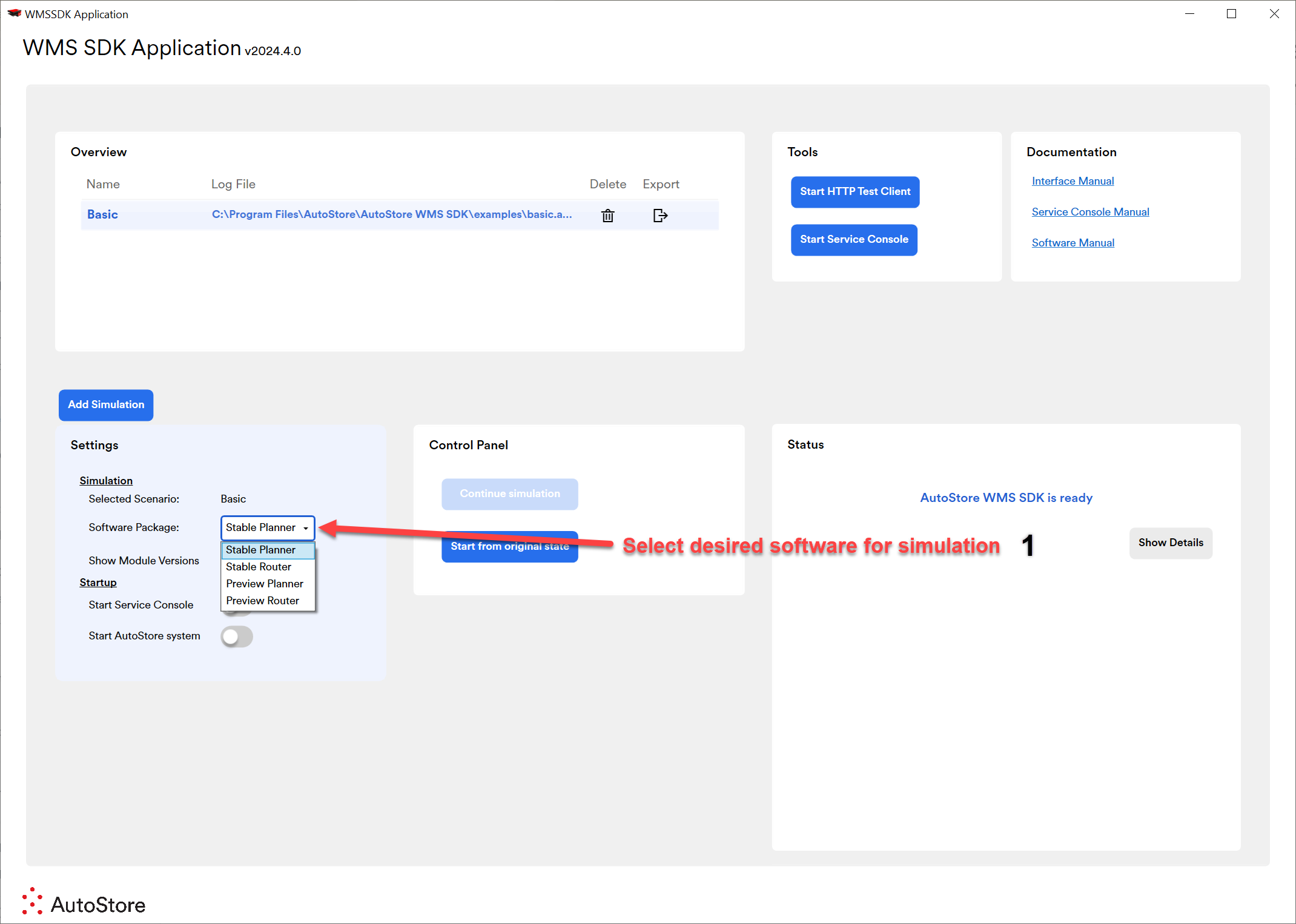
If you are unsure of what software to select always select a STABLE version as these have been fully tested. Preview versions a versions which are currently still being testing/developed and may contain fixes/upgrades etc.
NOTE: Ensure you select the correct version (Planner or Router) depending what you are testing for. For example, If you are emulating a live site use the same logic sw as that system. If you are using a port such as Fusion Port then it will ONLY work with Router software.
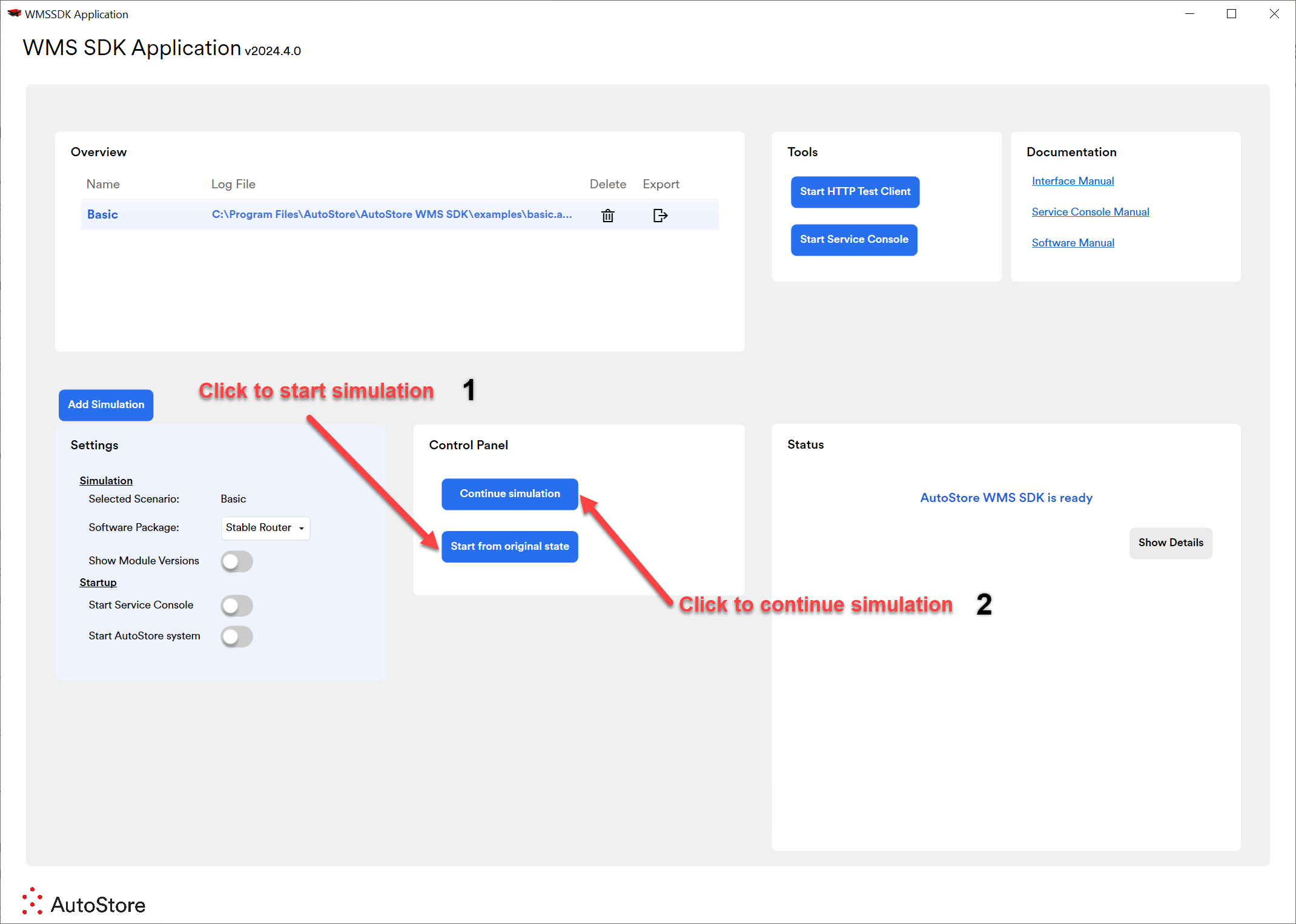
- "Start from original state" will start the simulation from the state of the .aslog as it was added originally.
- "Continue Simulation" will start the simulation from the state where you last left off when you last stopped the simulation in the SDK. NOTE: This option will be grayed out if it is the first time you are running the particular simulation.
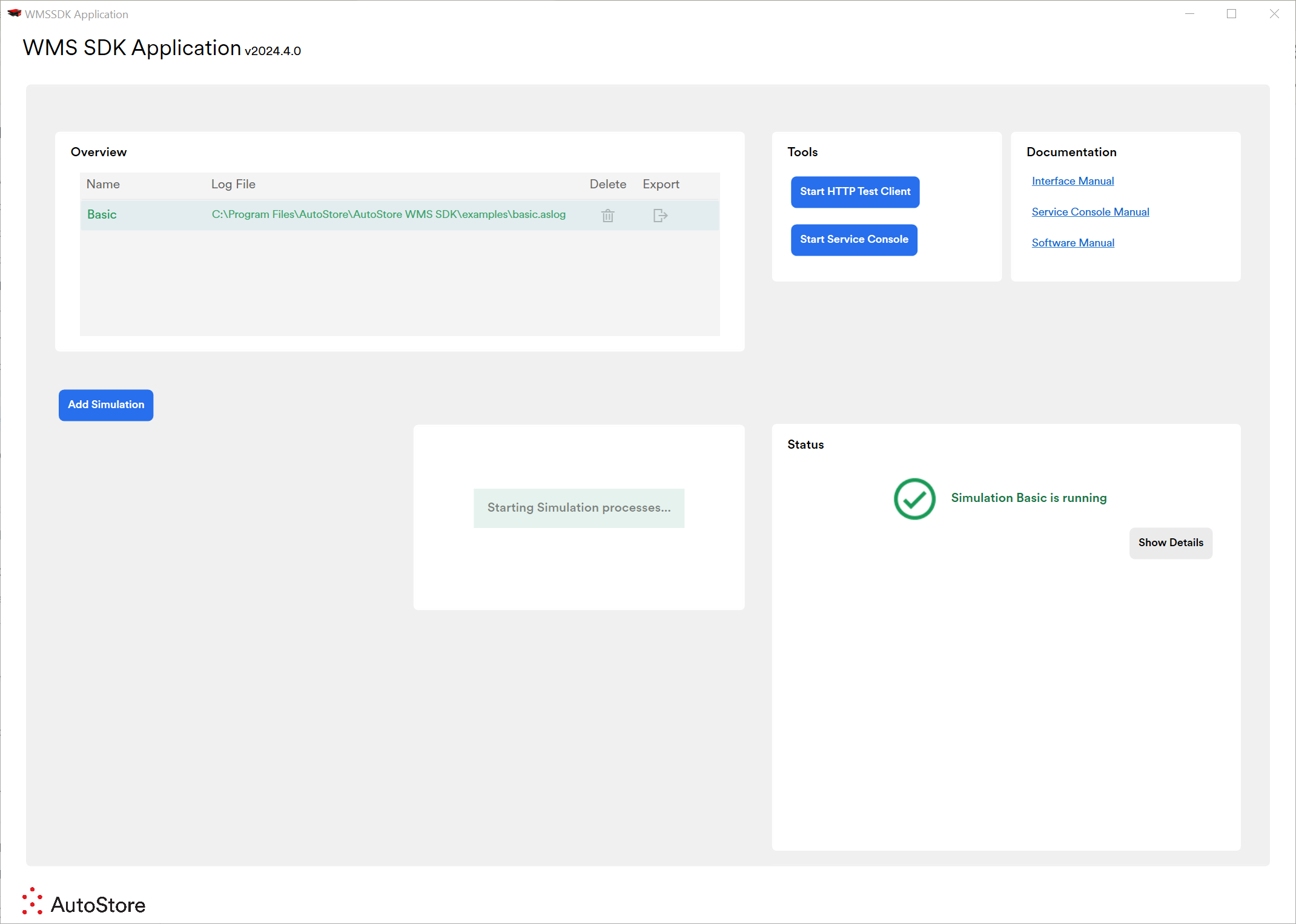
After clicking one of the buttons to start the simulations you will see "Starting Simulation process...".
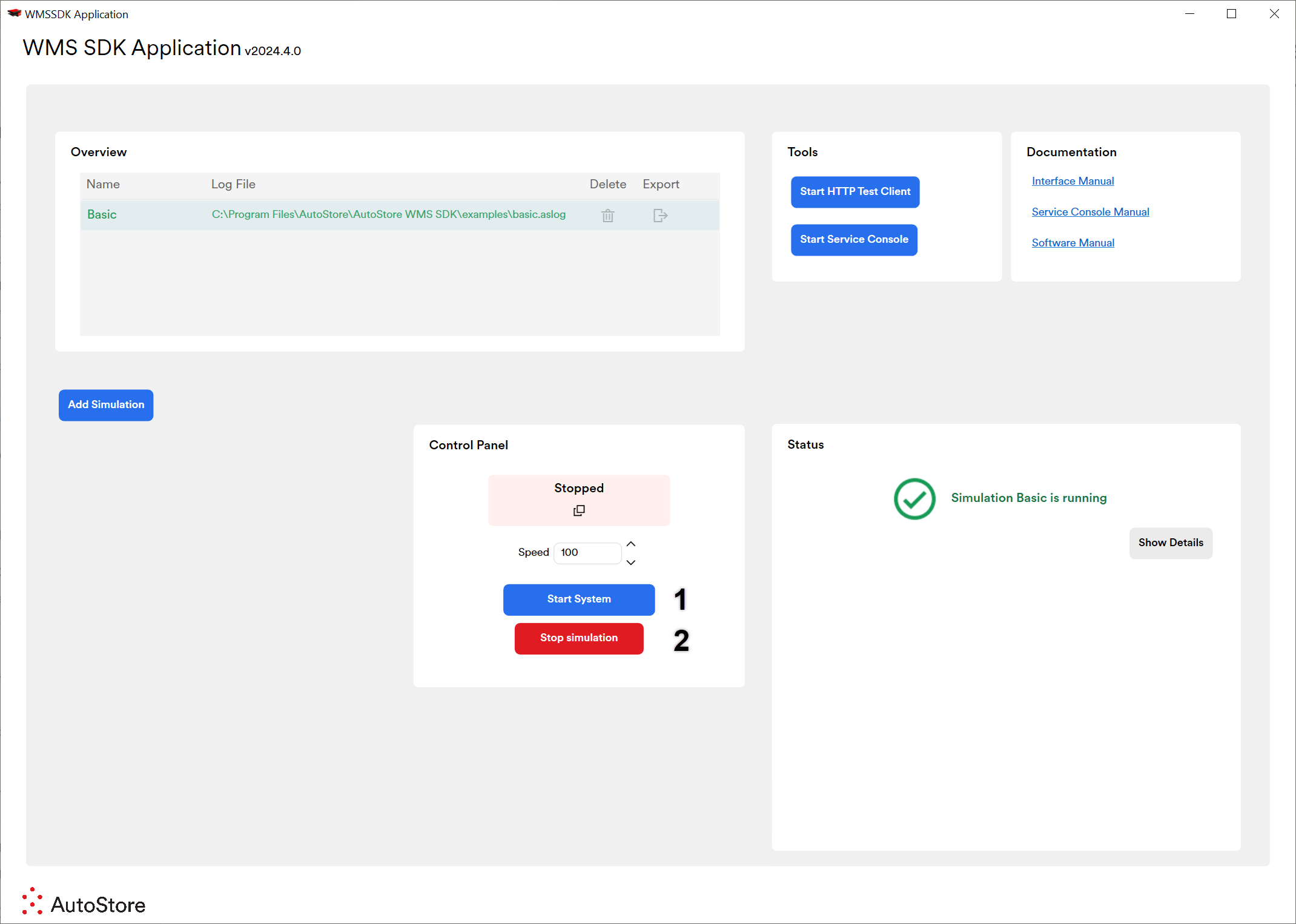
After a few seconds you should see the "Start System" and "Stop Simulation" buttons.
- "Start System" will start the system and will make the Robots start moving around. This button will turn into a "Stop System" button when the system is Running. NOTE: You can also start and stop te system via the service console.
- "Stop Simulation" will completely stop the simulation and save the current state of the system to be continued at a later time.
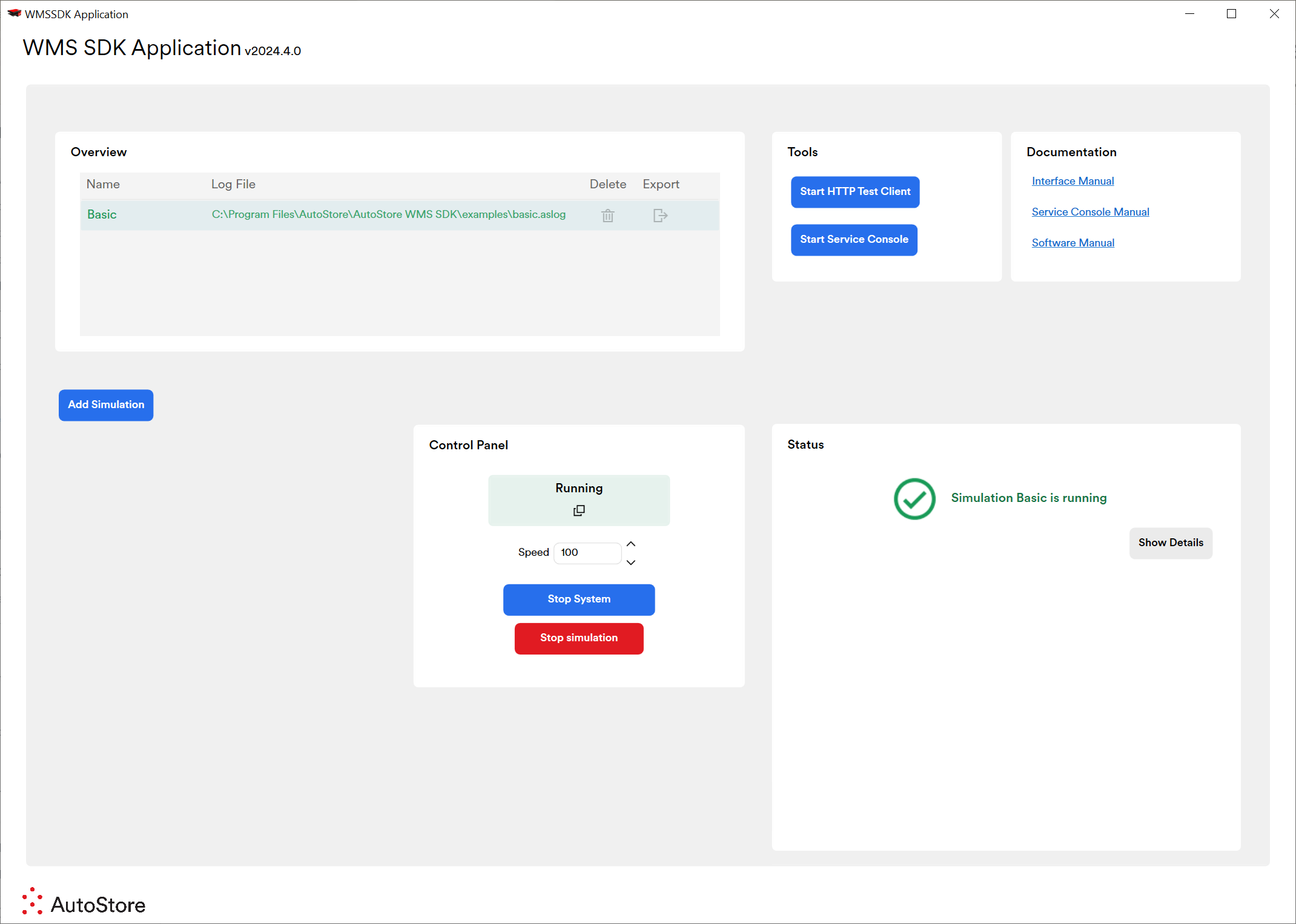
System is now "Running".
# 3) Other Features of the WMS SDK
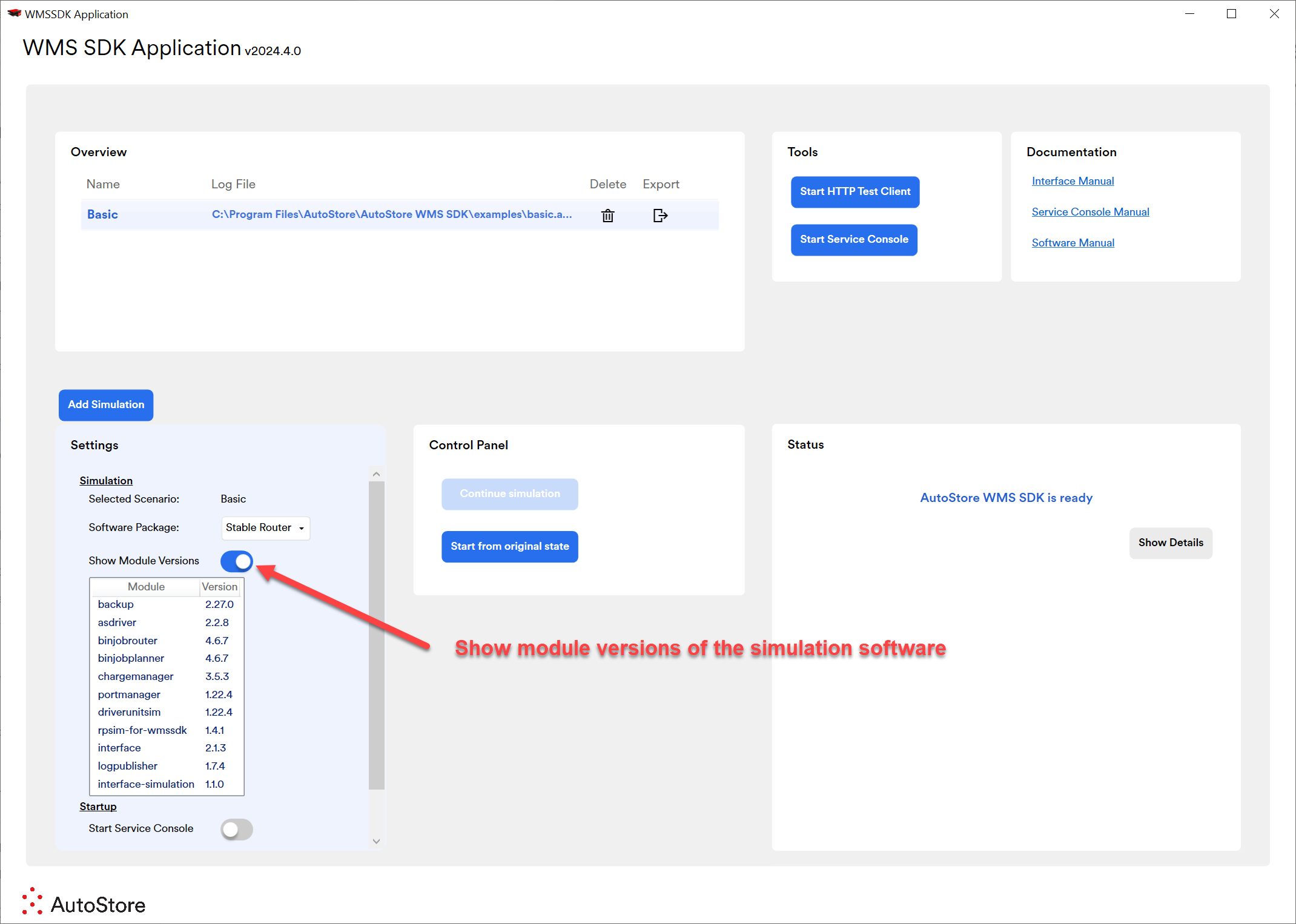
Great for troubleshooting and double checking the different modules running.
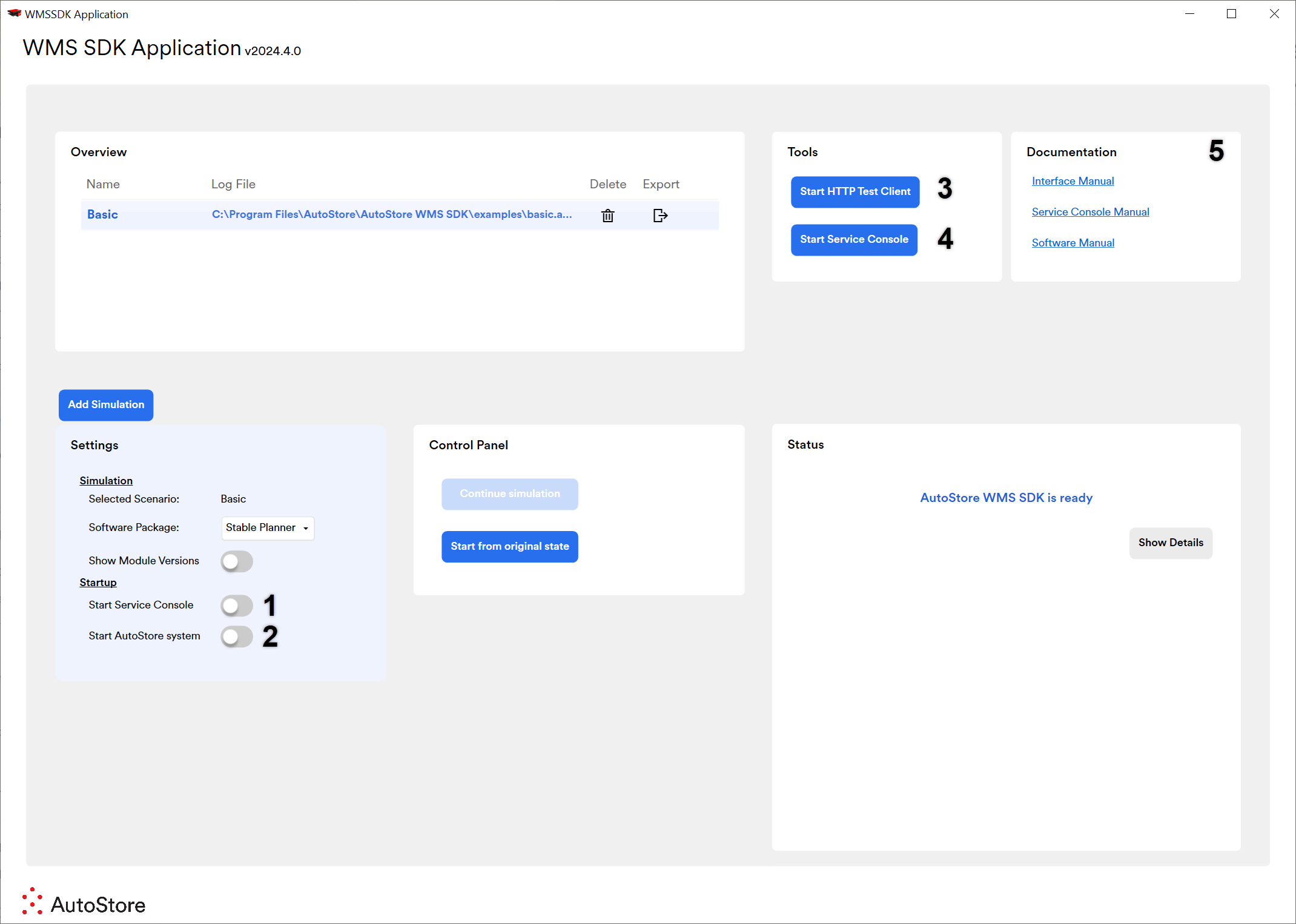
- "Start Service Console" Toggle: Turn this on if you would like the Service Console to start up/open automatically as soon as the simulation starts running.
- "Start AutoStore System" Toggle: Turn this on if you would like to start the system to mode "Running" as soon as the simulation starts.
- "Start HTTP Test Client" Button: Click this button to open up the HTTP Test Client program window. This program is used to test or individually send the different Interface methods and ensure the Interface is working correctly.
- "Start Service Console" Button: Same as #1 except you can click this to open/start the service console at any time.
- "Documentation" Section: This is a section with quick links to different useful documentation you may need.
Updated 2 months ago